1. Selections
By making a selection, you are telling Photoshop to grab a group of pixels so that you can make adjustments to them. In Photoshop, you can do a lot of things to selections of pixels. You can change their color, move them, re-size them
. Masking
Masking is probably the most important concept to understand. Masking is the act of showing or hiding pixels. When you apply a mask to an object in Photoshop, you are telling Photoshop which pixels to show, and which to hide. By placing white onto a mask, you are telling Photoshop to show the pixels behind that mask. By placing black onto a mask, you are telling Photoshop to hide the pixels behind that mask.
3. Brush Tool
When most people think of brushes, they probably immediately think of painting. While Photoshop is an amazing digital painting application, the Brush Tool’s most useful function isn’t actually for digital painting or illustration, in fact, the Brush Tool is usually most useful when used on masks or Adjustment Layers. These tutorials will explain everything you need to know about using Brushes in Photoshop.
4. Adjustment Layers
Adjustment Layers allow you to make changes to a pixel’s color or tone. You can use an Adjustment Layer to add contrast, adjust color, to convert an image to black and white, and much more..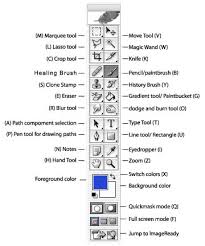
5. Clone Stamp
If you edit or retouch photos a lot, the Clone Stamp tool will be essential. The Clone Stamp tool allows you to sample pixels from one part of an image and paint those pixels onto another part of an image.

You can use this tool to remove blemishes from a photo or even to delete objects from a photo all-together. This tutorial from Phlearn is a great place to start if you want to learn more about how to use this tool.


No comments:
Post a Comment